Become an Atmosphere 2.0 Beta Tester
Installation Instructions
Thank you for your interest in beta testing the Atmosphere app. Please see the app installation instructions for iPhone and Android, respectively, below.
If you have difficulty installing the app, please do not hesitate to reach out on our Discord server or at support@getatmosphere.app.
For iPhone
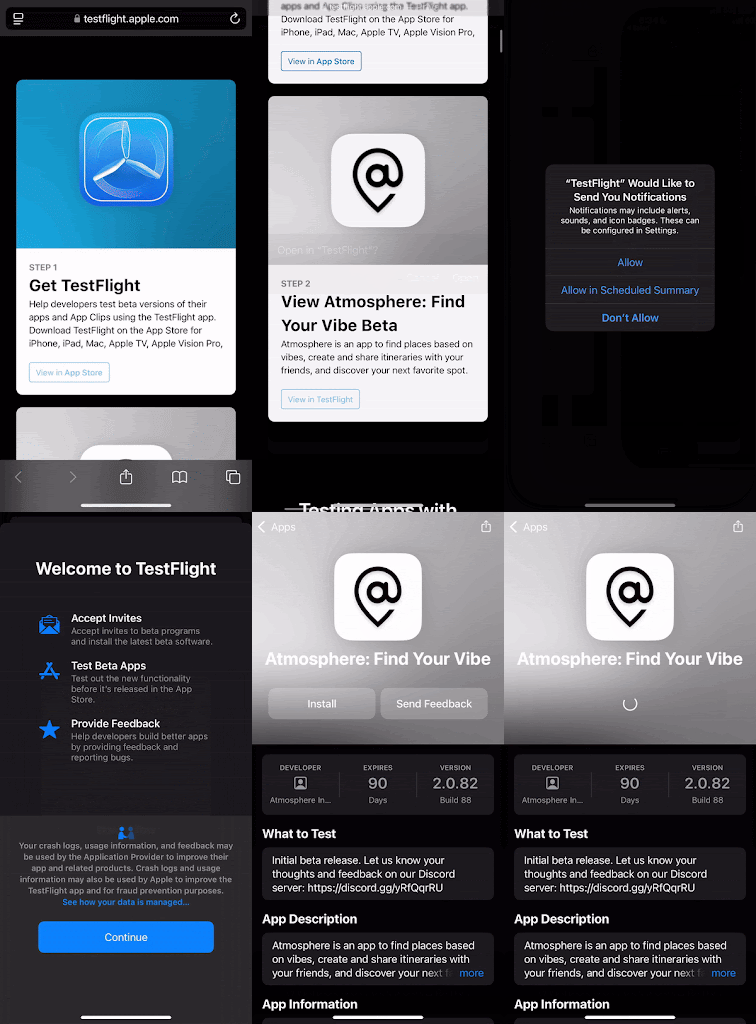
The beta version of the Atmosphere app is available through TestFlight, Apple's official beta testing app for the App Store. To install the Atmosphere app through TestFlight, follow the instructions below.
Step 1
On your iPhone, open the Atmosphere beta invitation link
Step 2
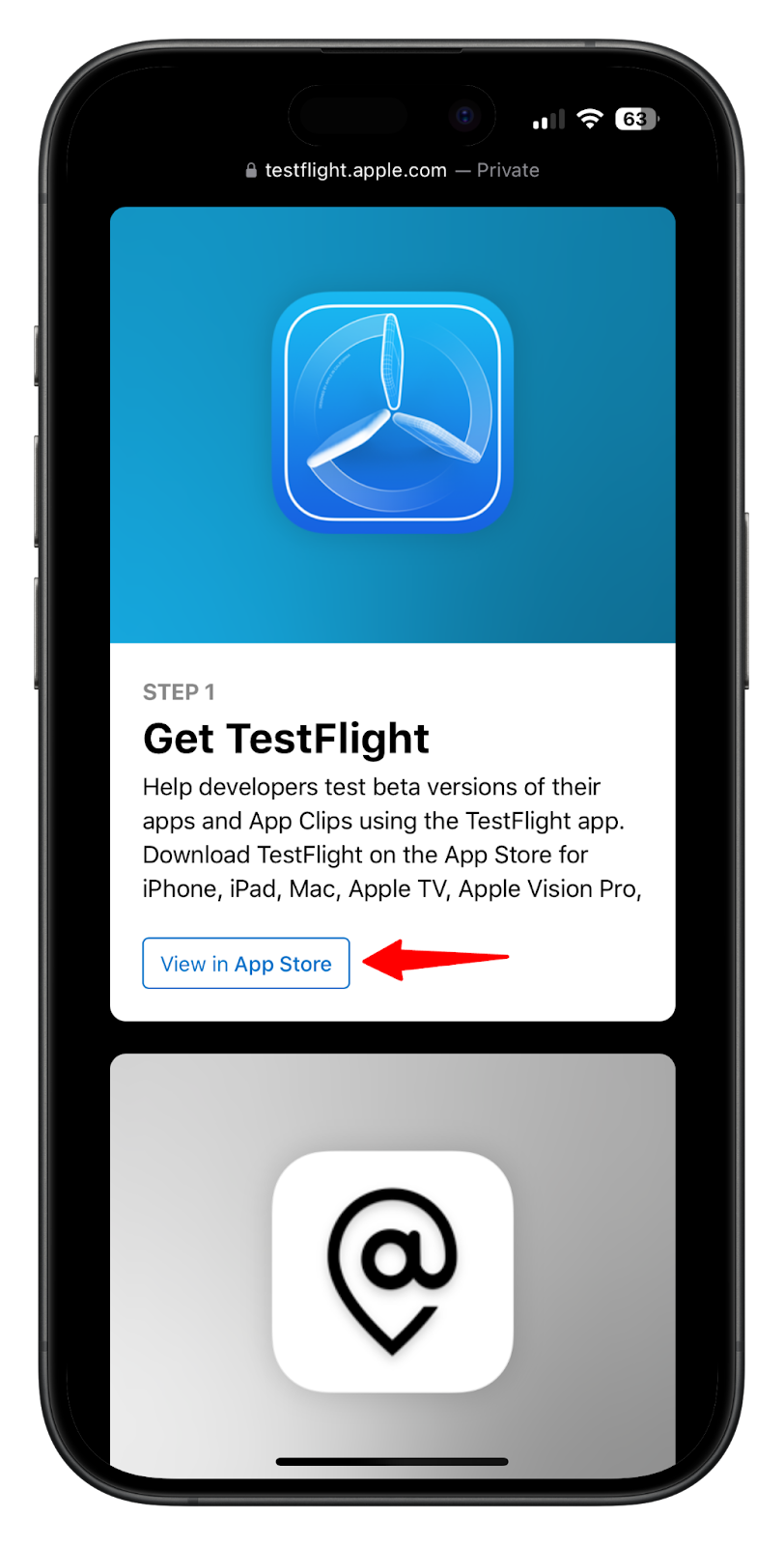
To install Apple TestFlight, tap this link on your iPhone. Alternatively, from the link in Step 1, tap the "View in App Store" button under "Get TestFlight":
NOTE: If you are having trouble opening the link, try Safari.
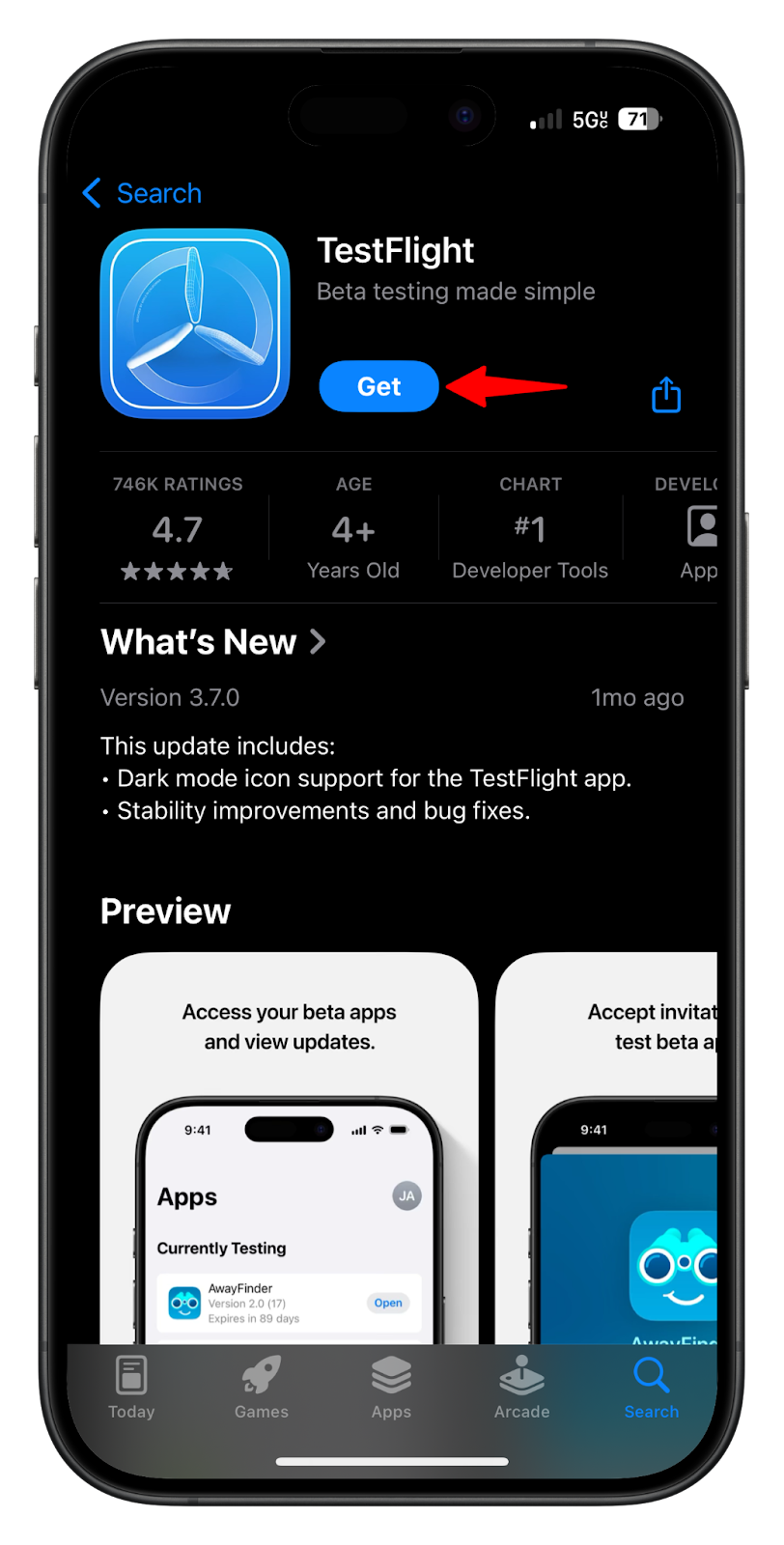
Step 3
Install Apple TestFlight by tapping "Get":
Step 4
Navigate back to the Atmosphere beta invitation link from Step 1 on your iPhone
Step 5
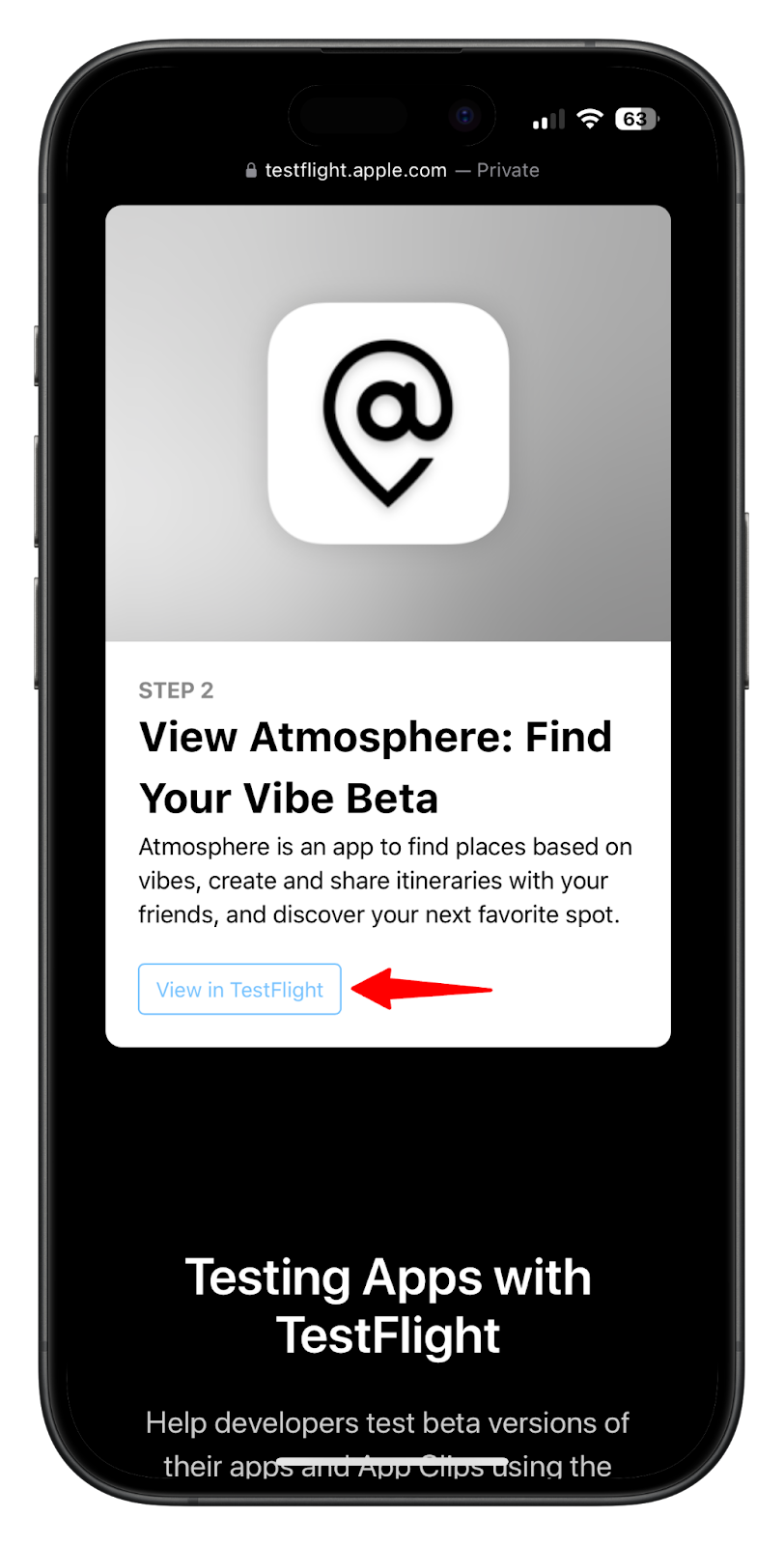
To open the Atmosphere app in TestFlight, tap this link on your iPhone. Alternatively, navigate back to the invitation link from Step 1, then scroll down and tap the "View in TestFlight" button under "View Atmosphere: Find Your Vibe Beta":
Step 6
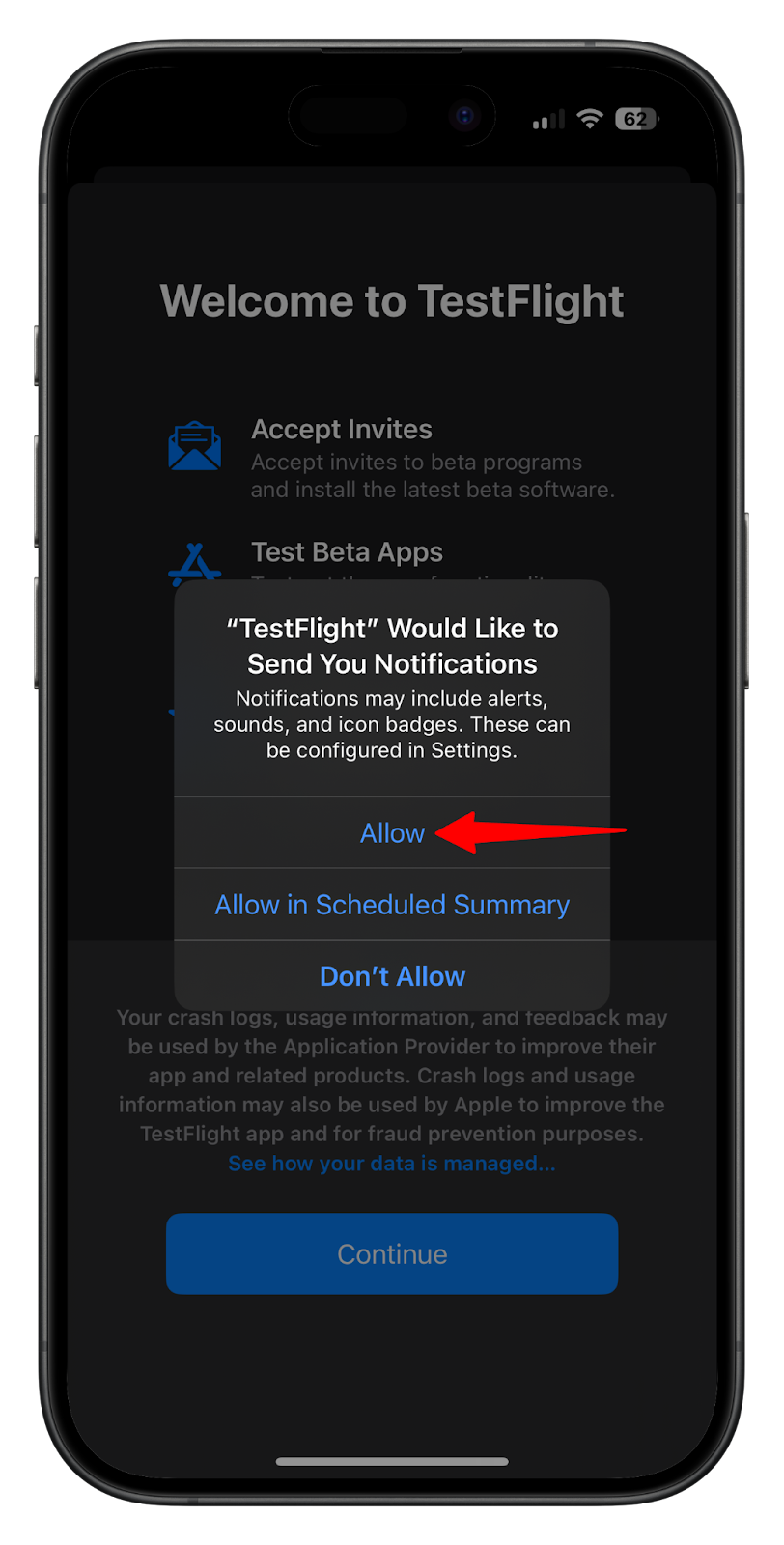
After opening the TestFlight app, if prompted to receive notifications, tap "Allow" to be notified about new Atmosphere beta updates:
Step 7
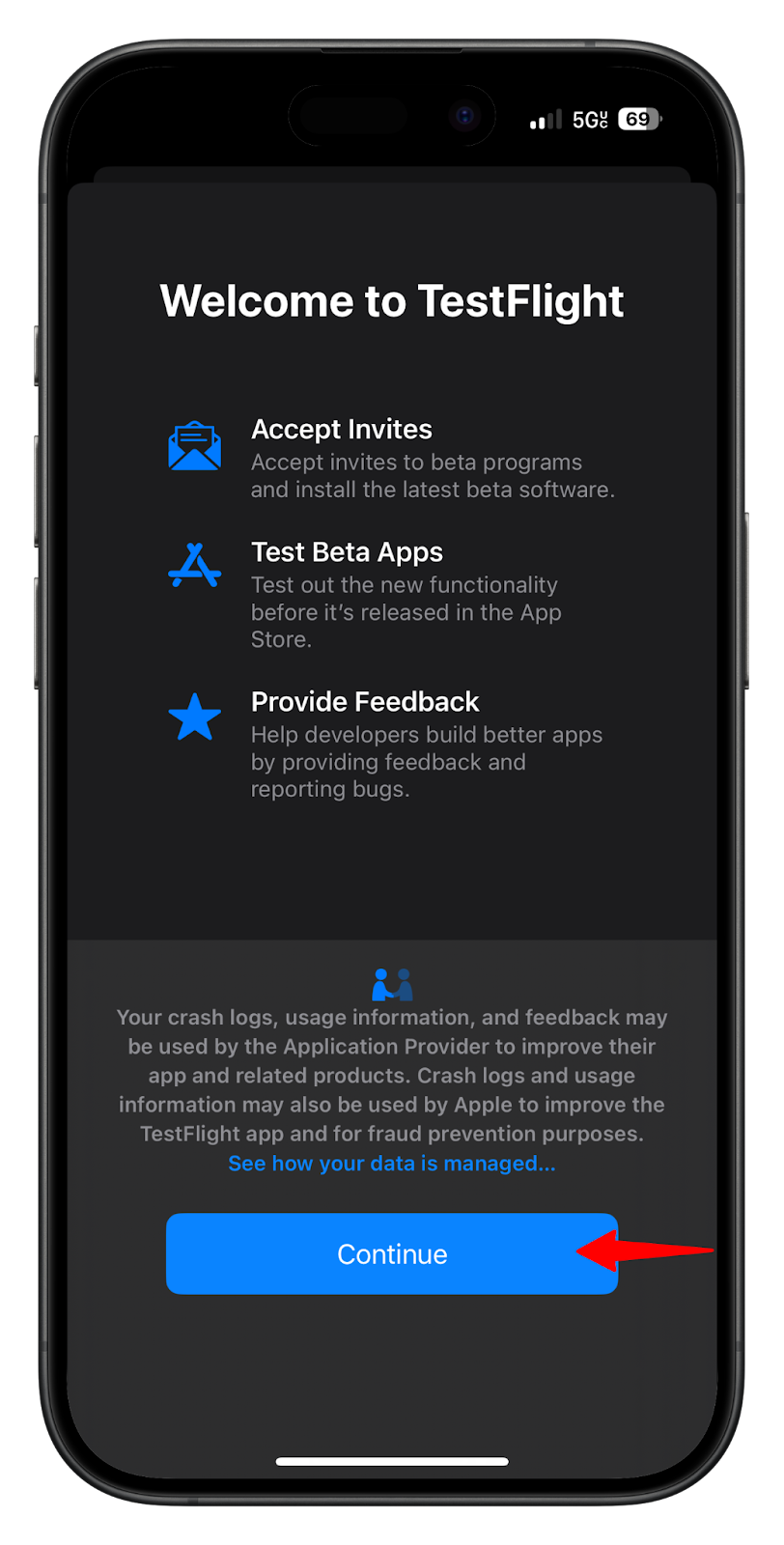
In the TestFlight app, if shown "Welcome to TestFlight", tap "Continue":
Step 8
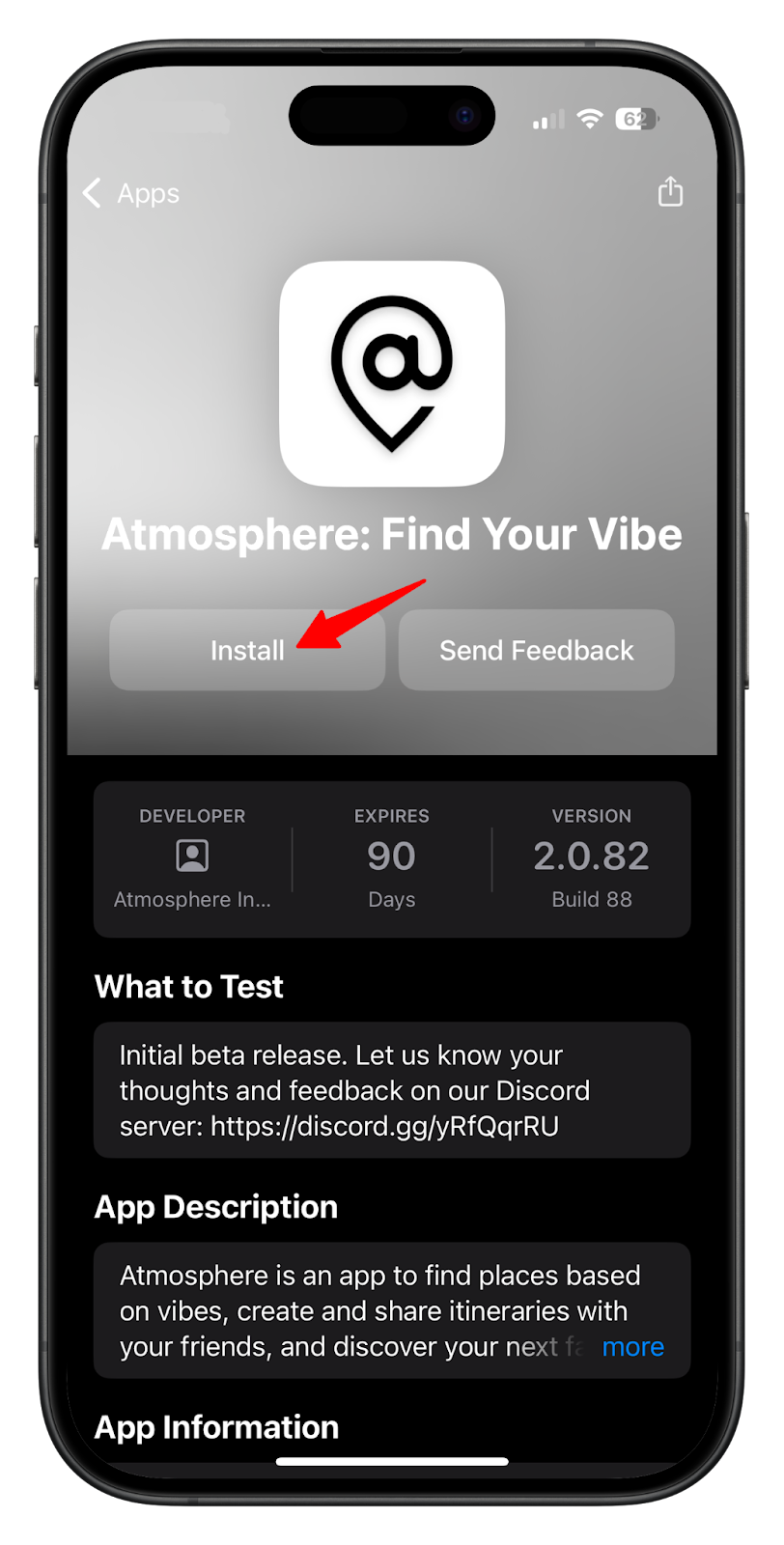
You should now see a screen titled "Atmosphere: Find Your Vibe". If not, tap this link on your iPhone. Tap "Install":
Step 9
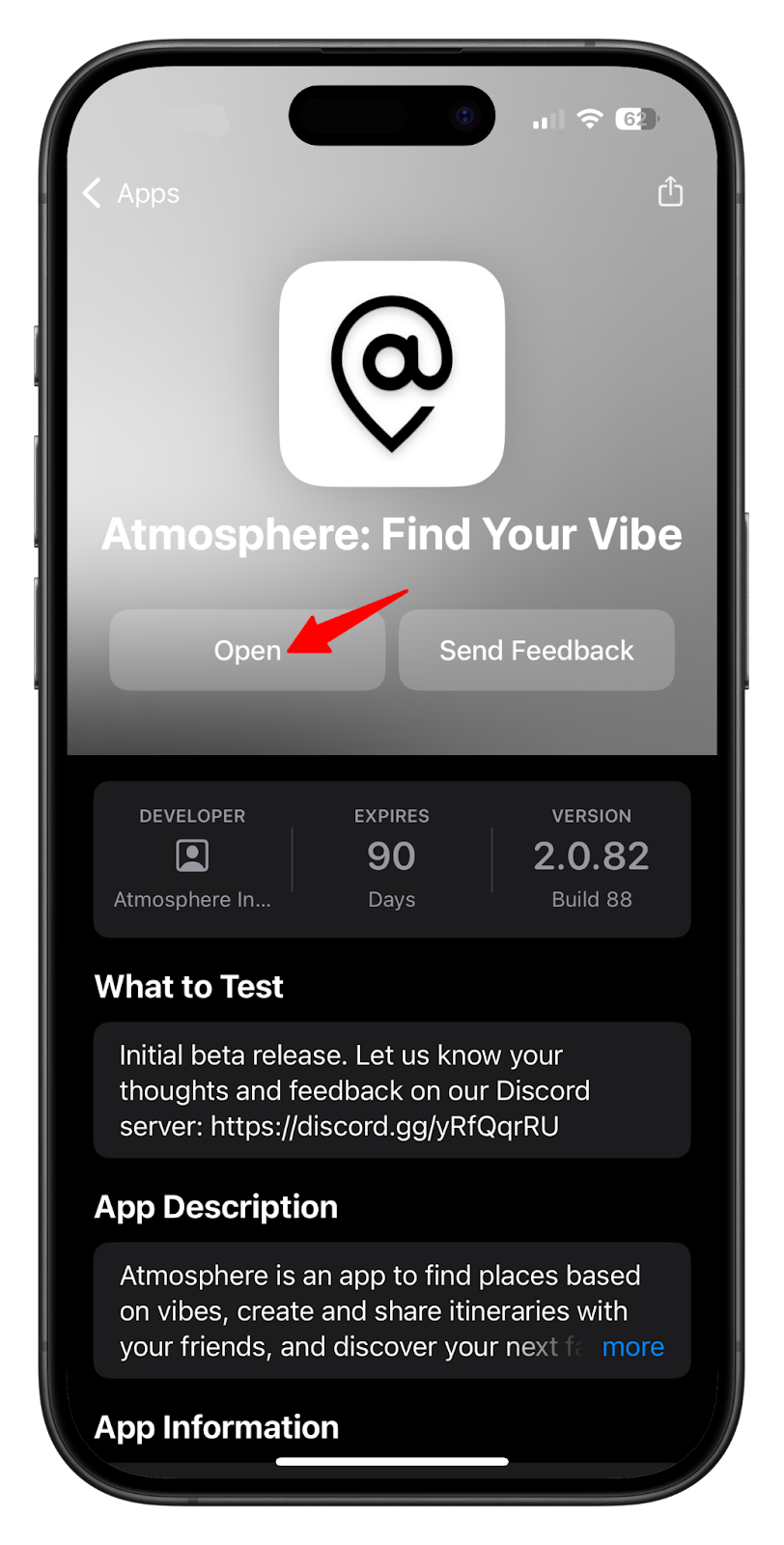
Once the Atmosphere app is installed, tap "Open" to open the app:
Step 10
Join the Atmosphere 2.0 Beta Discord channel to request features and report bugs: https://discord.gg/fDsqUYkXJY
For Android
Step 1
On your Android phone, open the Atmosphere Beta App link
Step 2
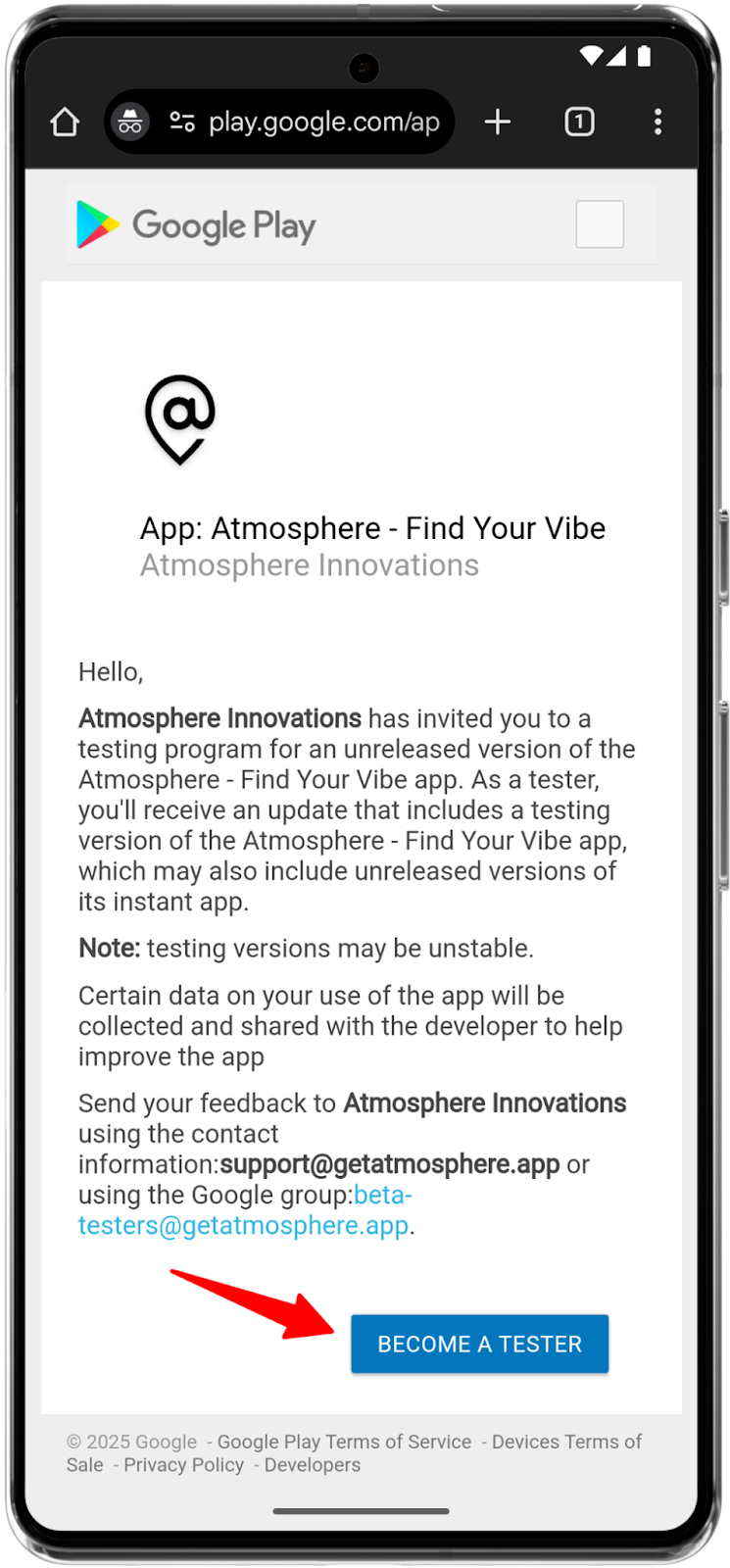
Tap the "Become a tester" button:
Step 3
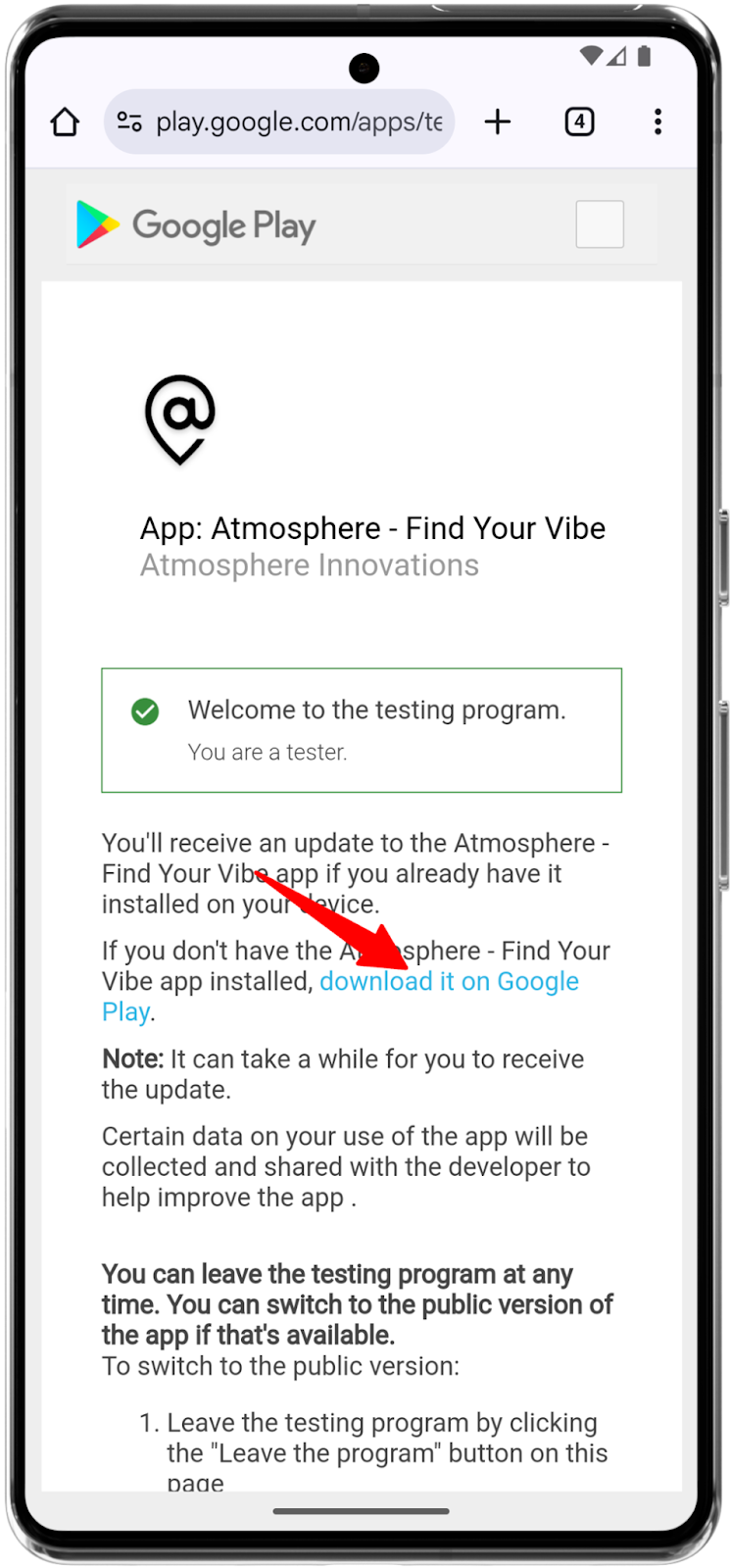
Tap the "download it on Google Play" link. Alternatively, tap this link.
Step 4
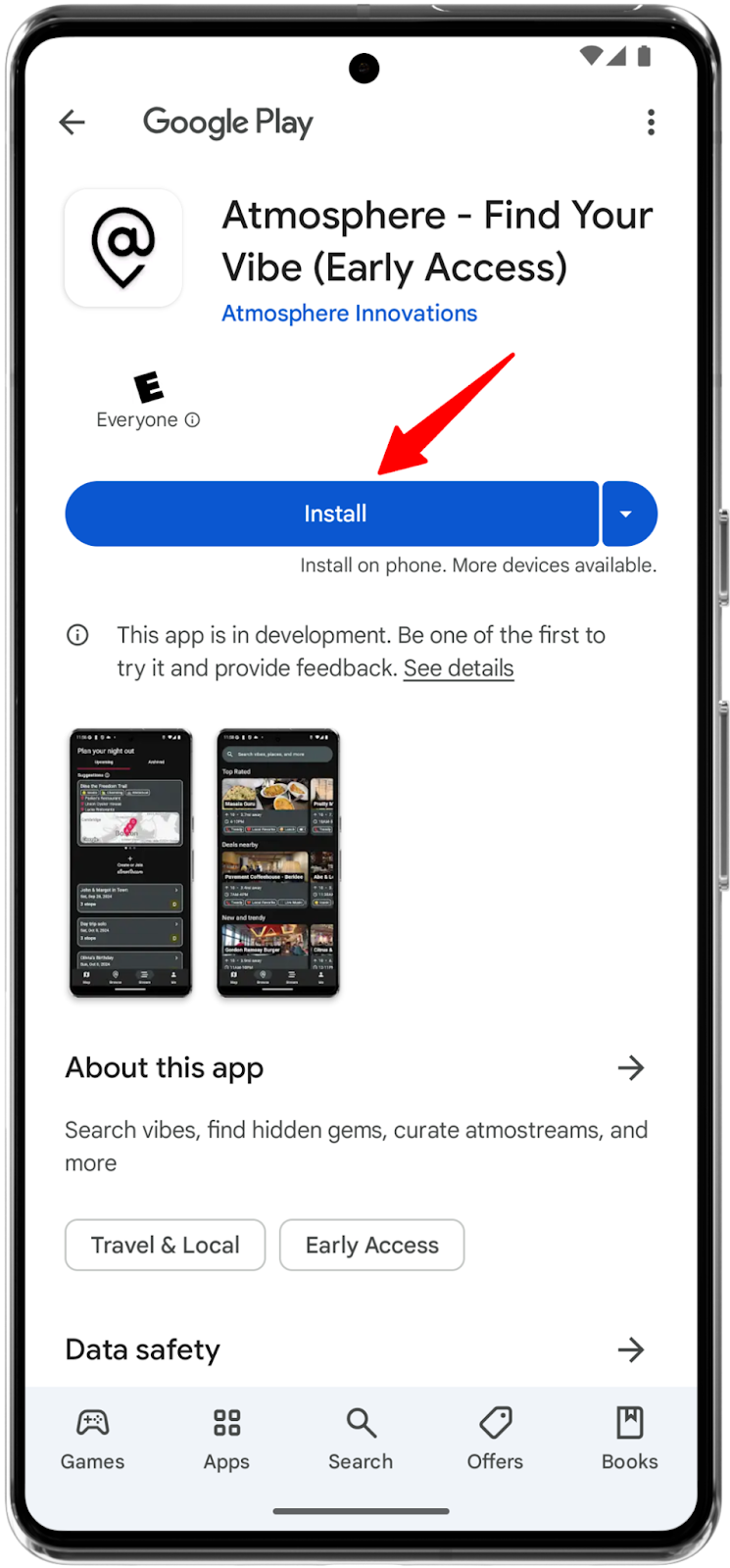
Step 5
Join the Atmosphere 2.0 Beta Discord channel to request features and report bugs: https://discord.gg/fDsqUYkXJY